Simple Drift Controls
PC key map, 2-step technique, camera and HUD tips, plus mobile and console notes.
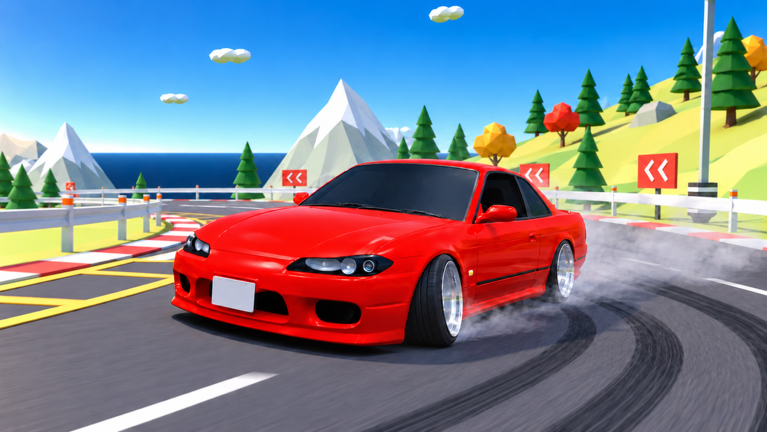
Clean drifts start with clean inputs. This guide documents the Simple Drift PC control scheme, explains how e-brake and 2-step work together, and adds practical notes for phone, tablet, and console players. Keep the compact Controls Cheatsheet open on a second monitor if you like quick glances.
PC controls table
| Key | Action | When you use it |
|---|---|---|
| W | Throttle | Build speed before initiation |
| A / D | Steer | Turn in and countersteer |
| S | Brake / reverse | Slow entries, corrections |
| Space | E-brake | Break rear traction to start or tighten a slide |
| Q | 2-step | Burst / anti-lag style pulses to keep the rear alive |
| E | Exit vehicle | Leave the car back to on-foot / menu flow |
| M | Maps | Open or jump the map selection UI |
| C | Camera | Cycle camera modes including first-person |
| U | Hide HUD | Clean screenshots and focus driving |
| H | Horn | Fun, warnings in tandem, emote energy |
| G | Home | Recenter / return flow when you need a fast reset |
| L | Lights | Night touge, night city, and style |
| N | Radio | Cabin vibe while you farm laps |
These bindings match the published Simple Drift control set used across this wiki. If a patch remaps a key, check Updates and adjust this mental model.
Core technique: e-brake + 2-step
E-brake (Space)
The e-brake is your initiation and tighten tool. Typical pattern:
- Approach with enough speed that the car wants to coast through the corner.
- Steer toward the inside, then tap or hold Space to free the rear.
- Release as the slide settles and manage angle with A / D.
- Re-tap Space if the car grips up mid-corner and you need to rotate again.
Holding Space too long on high-power cars (looking at you, Chiron) can spin you into a wall. Short, intentional taps beat panic holds.
2-step (Q)
Q triggers the 2-step / two-step style pulse that keeps boost and rear energy in the drift. Use it to:
- Maintain slide speed on long touge sequences
- Re-energize the rear after a shallow initiation
- Add style during judged runs where continuous angle matters
Combine Q with throttle modulation rather than mashing both blindly. A common beginner mistake is spamming Q while still locked in full Space, which just yaws the car into a spin.
Starter drill
On docks or circuit:
- Third gear equivalent speed in a straight.
- Steer in → tap Space → release.
- One or two Q pulses while countersteering.
- Exit the corner still pointed forward.
- Repeat ten times before changing maps.
When that feels boring, you are ready for touge and forest road.
Camera and HUD tips
Camera (C)
Cycle until you find a mode that shows both the front bumper and enough road. First-person driving is excellent for immersion and night runs with lights on, but it narrows peripheral vision. Many players:
- Learn in chase camera
- Switch to first-person for cinematic night city / night touge laps
- Jump back to chase for tandem ghosts so they can see the lead car’s line
Hide HUD (U)
Use U for:
- Recording clean clips
- Reducing visual noise on technical maps
- Screenshots of kits, underglow, and strobes
Turn the HUD back on when you farm dailies or watch timers / scores.
Lights, radio, horn, maps, home
- L lights — essential on night touge and night city; also part of the style fantasy with underglow and strobes.
- N radio — optional comfort while grinding Earn Cash loops.
- H horn — communicate lightly in tandem; do not spam in judged quiet focus.
- M maps — jump between the nine environments described in Maps.
- G home — recover quickly after a bad crash instead of driving a destroyed line forever.
- E exit — leave the car when you need garage, menus, or a full reset mindset.
Mobile and tablet notes
The PC table above remains the source of truth for action names. Touch layouts remap those same actions onto virtual sticks, buttons, and menu rows — they do not invent new mechanics. Learn the vocabulary on PC labels first (Space = e-brake, Q = 2-step), then find the matching on-screen control.
Button layout mindset
Treat the HUD as a limited desk:
- Throttle / steer take the largest touch real estate — keep them reachable without covering the vanishing point of the road
- E-brake deserves a large, distinct hit target; burying it under a tiny corner icon causes late initiations
- 2-step must be a separate control from e-brake. On touch it is easy to mash both by accident; place them far enough apart that a thumb can pulse 2-step without riding e-brake
- Camera, HUD, lights, maps, and home usually live in a compact overflow row — memorize where HUD hide and camera sit before you start a judged attempt
If your layout feels crowded, hide non-essentials while learning. You can always re-enable lights and radio after the entry timing sticks.
2-step on touch
Keyboard Q is a discrete tap. Touch 2-step is often a holdable button with less tactile feedback, so beginners over-hold and spin.
Practice pattern on docks:
- Initiate with a short e-brake tap.
- Release e-brake fully.
- Pulse 2-step once or twice while countersteering — short contacts, not a glued thumb.
- If the rear yaws into a spin, you overlapped e-brake and 2-step; separate the inputs further on the next run.
When that drill is boring, move the same sequence into Judged Runs on a forgiving map before night touge.
Sensitivity and vision
- Raise touch or camera sensitivity in small steps. Max sensitivity on touge feels like the car teleports into walls.
- Prefer a slightly lower steer rate until your initiation point is consistent, then creep sensitivity up.
- On tablets, landscape plus a higher camera distance often beats portrait for reading linked corners.
- First-person on a phone narrows the view hard — learn in chase cam, then switch for cinematic night clips once the line is memorized.
Clip-on controllers and leaderboards
If you main global boards or long judged sessions, a clip-on or Bluetooth controller usually beats pure touch for e-brake timing. Map the gamepad so e-brake and 2-step sit on different fingers, mirroring the PC mental model. Re-check in-experience prompts after Roblox client updates; glyph labels can shift even when the actions stay the same.
Pure touch is still fine for dailies, docks farm, and learning. Do not gatekeep yourself out of the game — just pick tools that match the session goal.
Judged practice and screenshots on mobile
- Run judged warm-ups on docks or circuit before ranked-feeling attempts; cleanliness pays better than crash spam on any platform (Judged Runs, Earn Cash)
- Use HUD hide (U on PC; the matching touch toggle on mobile) before screen recordings so kits, underglow, and strobes read clearly — then finish the look tips in Customization
- Redeem codes carefully: on-screen keyboards love inserting spaces; see How to Redeem
- After a bad crash, use the home / reset control instead of limping a ruined mobile run with fat-finger corrections
Console notes
Gamepad players should mirror:
- Triggers / sticks for drive
- A face button or trigger for e-brake (check in-game prompts)
- A bumper or face button for 2-step
- D-pad or select-style buttons for camera, HUD, lights, and map UI
Exact console glyphs can vary with Roblox’s layer; always trust the in-experience prompt overlay if it disagrees with a wiki table.
Controls vs tuning
If inputs feel correct but the car still will not rotate, the problem may be the build. Steering angle and stance changes on the Car Tuning page often unlock the handling your fingers already know. Conversely, a perfect tune cannot save panic Space holds.
Controls vs car choice
Beginners should not learn on the highest power hypercar. Use the free 3000GT or a mid chassis from the Cars Tier List, then revisit the Chiron when Q timing is consistent.
Practice plan (30 minutes)
- 0–5 min — straight-line throttle and braking feel on circuit.
- 5–15 min — Space initiations only, no Q spam.
- 15–25 min — add Q pulses; aim for linked corners.
- 25–30 min — one judged run focusing on cleanliness over score chasing.
Log what failed: initiation, mid-drift adjust, or exit. Fix one issue per session.
Related pages
Bind the keys in your muscle memory, then let the car dance.
Frequently Asked Questions
Quick answers to the most common questions.
What key is e-brake in Simple Drift?
Space on PC. Mobile and console use their on-screen or gamepad equivalent.
What does Q do?
Q triggers 2-step pulses that help keep drift energy and style. Combine with throttle and e-brake, do not mash it alone.
How do I hide the HUD?
Press U on PC to toggle the HUD for cleaner focus or clips.
Can I drive in first person?
Yes. Cycle camera modes with C until you reach first-person driving.
Are controls the same on mobile?
Actions match, but inputs are on-screen buttons instead of WASD / Space / Q. Keep the PC table as the reference, separate e-brake from 2-step on the touch layout, and use HUD hide for clean kit screenshots.